26 July 2023
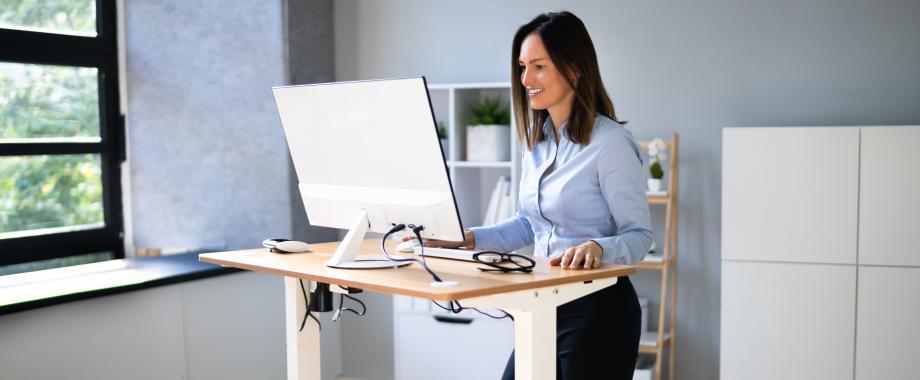
To optimally set up a VDU workstation, it is best to follow the following step-by-step plan. It is recommended to go through the steps one by one from the beginning, as the different settings and actions influence each other.
STEP 1: chair adjustment
- Place the chair freely in the space. Let the employee sit properly in the chair (as far back as possible, with their back against the backrest).
- First adjust the seat height. The feet should be flat on the floor. The angle between the thighs and torso should be 90° or more. This is important to allow for a good posture of the lower back. The pressure of the seat should feel evenly distributed over the thighs. The knee angle is approximately 90° or more.
- Then adjust the seat depth. There should be 3 to 4 fingers of space between the seat and the hollow of the knee. In this way, the thighs have sufficient support without causing compression of the nerves and blood vessels in the knee pit.
- Then adjust the backrest correctly. The convex shape of the backrest should fit into the curve of the lower back (approximately at belt height). Adjust the tilt so that the back feels well but comfortably supported. If the employee prefers dynamic sitting, it is important to properly adjust the resistance of the chair. The employee should not feel that they are being pushed forward, nor that they are about to fall backward when leaning against the backrest.
- Then adjust the armrests correctly. The armrests are best placed at elbow height. The height of the armrests must allow the arms to rest relaxed. In other words, the arms/shoulders should not be pushed up by the armrests. The width of the armrests is best adjusted so that the arms can rest close to the body. The depth of the armrests is very important. If the armrests come too far forward, they prevent the employee from moving close enough to the desk. The armrests should end at stomach height.
STEP 2: table adjustment
- The tabletop should be at elbow height. This is – if the armrests are correctly adjusted – the same height as the armrests. The armrests may protrude approximately 1 cm above the tabletop.
- Is the table too low? For a non (sufficiently) adjustable table, the table can possibly be raised with blocks. If the table is too high, the chair can be raised, provided a suitable footrest is used. This footrest must enable the employee to rest both feet flat on the ground.

STEP 3: screen position
- Place the screen directly in front of you. The top edge of the screen is best at eye level when looking straight ahead. This way, the neck can maintain a neutral posture when looking at the screen. When using reading glasses or multifocal lenses, a lower setup is recommended.
- Place the screen at least an arm's length away, this avoids eye complaints. To entirely avoid eye complaints, it is also important to prevent contrasts and reflections. It is best to place the desk (and the screen) perpendicular to the window to prevent glare. Also maintain at least 1.5 m distance from the window. Adequate sun blinds can prevent reflection from sunlight.
- If working with multiple screens it is advisable to place these screens at the same height and distance. The contrast and brightness should also be set the same. The secondary screen is best placed slightly rotated towards the user (approx. 30°).
STEP 4: keyboard, mouse and document holder
- The keyboard is best placed approximately 10 to 15 cm from the edge of the table, where the user naturally rests their hands. This allows the forearms to still have sufficient support. The feet of the keyboard are best folded in. This allows for a neutral wrist position.
- The mouse is best placed close to the keyboard, i.e., as much as possible in a straight line in front of the shoulders. There should also be sufficient space to move the mouse smoothly.
- For employees who regularly combine working with documents and computer work (e.g., typing over...) a document holder can prevent a bent and twisted neck posture. When the employee can touch-type, the document holder is best placed at the same height as the screen and at the same viewing distance. When the employee cannot touch-type, the document holder is best placed in line between the keyboard and the screen.